
Global Options v3.0
Appearance Options
Theme Color
Set the site’s primary theme color.
Accent Color
Set the site’s accent color, used to complement the primary theme color.
Extract Theme Color from Cover Random Image
When enabled, the primary theme color is dynamically extracted from the current cover image.
Extract Accent Color from Featured Image
Similarly, extract an accent color from each post’s featured image.
When enabled, post cards on the home page use this color for highlights; on single-post pages, elements (links, blockquotes, etc.) use the featured-image color.
Dark Mode
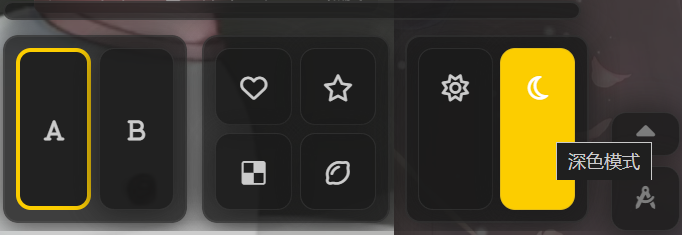
The theme supports dark mode, which can be toggled via the switch in the lower-right corner.
Dark Mode Theme Color
Set the primary theme color for dark mode (i.e. “night mode”).
Dark Mode Auto-Switch
Enable automatic switching between light and dark modes.
Auto-Switch Strategy
Once auto-switch is enabled, choose one of:
- Client Local Time: Dark mode from 22:00 to 07:00 (local time).
- Follow Client Preference: Mirror the user’s OS/browser setting.
- Always On: Dark mode permanently enabled unless overridden by client.
Dark Mode Image Brightness
Adjust the brightness of images in dark mode.
Drag the slider; recommended range 0.6–0.8.
value
0.4value
1
Dark Mode Component Opacity
Adjust the opacity of UI components in dark mode.
Drag the slider; recommended range 0.6–0.8.
value
0.2value
1
Dark Mode Background Opacity
Adjust the background opacity in dark mode.
Drag the slider; recommended range 0.6–0.8.
value
0.2value
1
Other Appearance Options
Memorial Mode
When enabled, applies a global black-and-white filter—useful for commemorative occasions.
Loading Placeholder SVG
Set a custom SVG to display as the site’s loading indicator.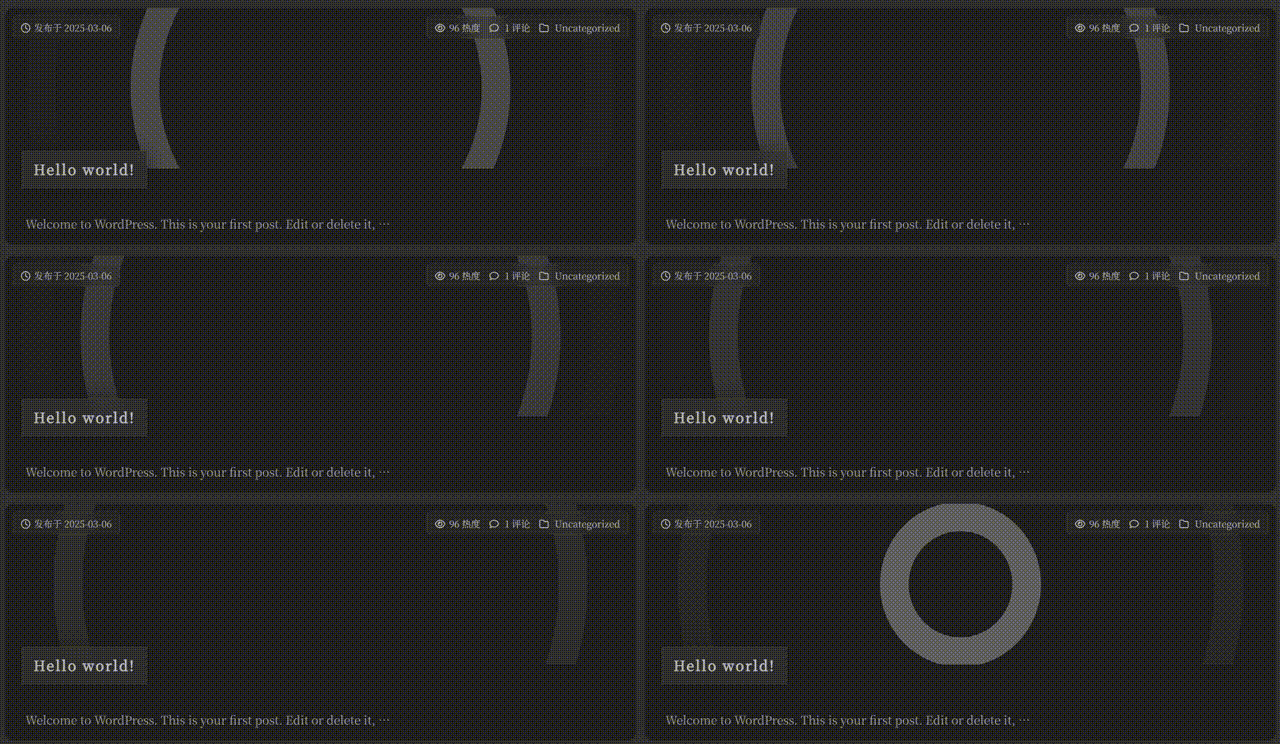
Font Options
Global Text Options
Body Text Font Weight
Adjust the font weight for non-emphasized text.
Drag the slider; recommended 300–500.
Body Text Font Size
Adjust the base font size for body text.
Drag the slider; recommended 15–18px.
value
10value
20
(Avoid excessively large sizes unless designing for seniors.)
External Fonts
Import External Font
Enter the URL of a hosted font file (.ttf, .woff, .woff2, etc.).
Upload or convert your font to
.woff2, host it somewhere accessible, then paste the URL here.
In Font Name, enter the font’s internal name for use elsewhere.
Google Fonts API URL
Override the default Google Fonts CDN URL if desired.
Google Font Names
Enter one or more Google Font names (prefixed with |, spaces replaced by +).
Must match fonts available at Google Fonts.
Example:|ZCOOL+XiaoWei|Ma+Shan+Zheng
Navigation Menu Options
NOTE
Edit your menu structure in WP Dashboard → Appearance → Menus.
Drag and drop to reorder; sub-items appear under their parent.
The theme supports up to two menu levels.
NOTE
You need to first create a new menu at Appearance → Menus → Edit Menus,
then assign your newly created menu at Appearance → Menus → Manage Locations (appears after creation),
otherwise the navigation bar may not display properly!
Menu Style
Dynamic Island (rounded corners supported)

- Centered example:

- Spaced example:

- Centered example:
Sakura

- Spaced (no corners):

- Standard (with corners):

- Spaced (no corners):
Dynamic Island Layout
Choose “Centered” or “Spaced” for the Dynamic Island style (default: Centered).
Menu Border Radius
Set the corner radius around each menu item (default: 50).
Sakura-Style Navbar Options
Navbar Width Style
Choose “Spaced” or “Standard” (see examples above).
Menu Item Alignment
Align items left, center, or right (default: Right).
Item Spacing
Adjust the horizontal padding between menu items.
Menu Font
Select a font (including any imported external font).
Text Logo Option
Enter text to display as a logo at the left of the menu.
Random Cover Toggle Button
Enable a dice 🎲 icon in the navbar to let users randomize the cover image (only when cover is enabled).
User Menu in Navbar
Show the user’s avatar in the navbar; hover to reveal profile links. On mobile, shows in the bookmark bar on non-post pages.
Logged-Out Avatar
Set the default avatar for guests (square image recommended).
Widget Panel & Frontend Background
Widget Button Border Radius
Adjust button corner radius in the widget panel (recommended: 10).
Panel Border Radius
Adjust the corner radius of the widget panel itself (recommended: 10).
Widget Panel Font
Specify a font for the widget panel (import via Global Fonts first).
WP Widget Area & Light/Dark/Font Toggle
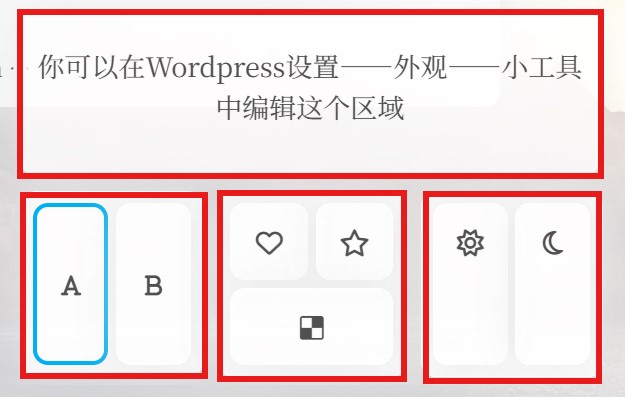
This screenshot shows, in order:
WP Widgets Area, Font Toggle, Frontend Background Toggle, Dark/Light Toggle.
You can disable any of these. Frontend Background Toggle lets you switch the background image—configure below.
Customize widget contents in WP Dashboard → Appearance → Widgets.
Frontend Background
Background Scaling Mode
Choose Cover, Contain, or Auto (default: Auto).
- Cover: scale to fill the screen.
- Contain: tile from the center outward.
WARNING
If you’ve enabled “Cover & Frontend Unified,” select Cover.
Background Blur
Toggle blur effect on the frontend background.
Background Picker
Select images for each background option in the toggle menu.
Background Opacity
Adjust background opacity.
Drag the slider; recommended 0.6–0.8.
Frontend Fonts
Choose which fonts correspond to the two style-switch buttons in the widget panel (import fonts in Font Options).
Default Font / Style A
Set the default font or the “A” style font.
Style B Font
Set the “B” style font.
Footer Options
Footer Music Player
Choose a music service under Global Options → Footer Options → Footer Player.
Supports:
- NetEase Cloud Music
- KuGou Music
- QQ Music
WARNING
Due to NetEase restrictions, if the player doesn’t load, obtain and supply valid cookies.
QQ Music may not work on overseas servers or accounts.
With NetEase cookies, more songs will appear (otherwise limited to ~10).
Custom MetingAPI or Playlist File
By default the theme uses its built-in MetingAPI. You may specify your own API (e.g. a containerized Meting-API deployment) or a static JSON playlist.
Provide a JSON array of track objects (no trailing comma after the last }):
[
  {
    "name": "Song Title",
    "artist": "Artist Name",
    "url": "https://…/track.mp3",
    "cover": "https://…/cover.jpg",
    "lrc": "https://…/lyrics.lrc"
  }
  // additional tracks…
]
Alternatively fetch a public playlist via apiurl?server=<provider>&type=playlist&id=<playlist_id>.
Footer Player Proxy
(Optional) Set an HTTP proxy for the music player (see libcurl CURLOPT_PROXY).
Playlist ID
Specify the playlist or album ID for the footer player.
Player Mode
Choose play order: sequential or shuffle.
Preload Resources
Enable preloading of lyrics or audio files.
WARNING
Preloading may slow initial page load—disable if you use loading animations and experience delays.
Default Volume
Set the player’s initial volume (recommended 0.4–0.6).
NetEase Music Cookies
Supply a valid NetEase Cloud Music cookie string for smoother playback.
- Open DevTools → Network in your browser while logged into NetEase Music.
- Refresh (Ctrl+F5) and inspect the first music.163.com request’s headers for the
cookievalue. - Paste the cookie string (omit
"cookie:") here.
Footer Sakura Animation
Enable a rotating sakura icon at the bottom of the page.
Footer Layout
- Centered
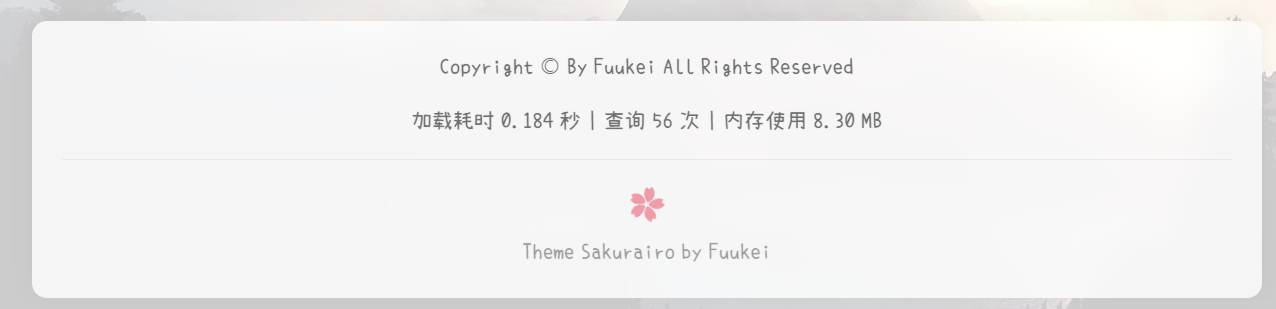
- Two Columns

Footer Info
Enter HTML to display arbitrary footer text (e.g. copyright, licenses).
Footer Text Font
Specify the font for footer text (e.g. Noto Serif SC).
Load & Performance Query
Display page load time and server load info.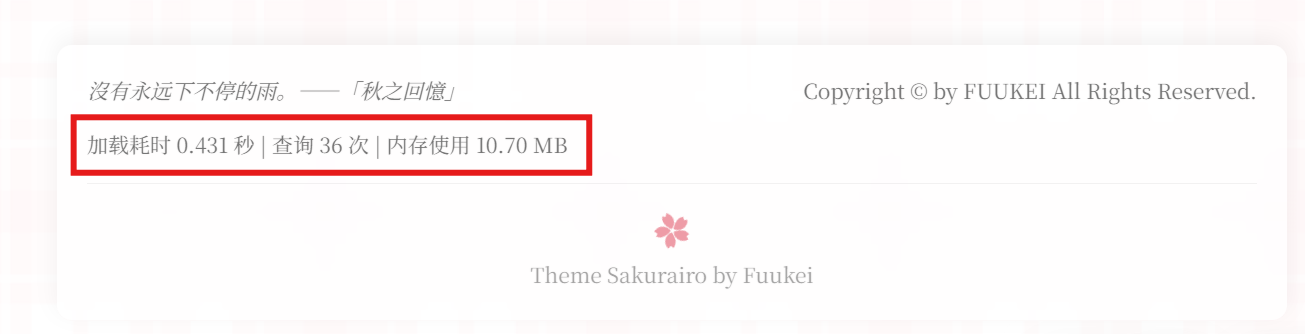
UpYun Alliance Logo
Show the UpYun Alliance logo at the footer.
Additional Footer Code
Insert custom HTML/JS (e.g. ICP record, analytics). Note that PJAX may require reloading these scripts per page—see PJAX Options.
Yiyan (Quote)
Footer Yiyan (Random Quotes)
Enable a random quote at the bottom of the page.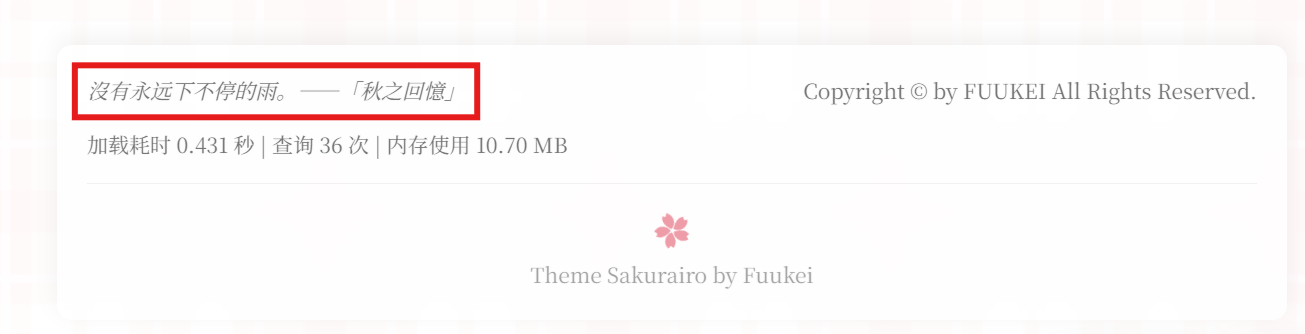
Yiyan API URL
Specify the endpoint for your random quote service.
Site Search Options
Navbar Search Toggle
Show a search icon in the navbar (mobile shows an inline search bar).
Search Overlay Background
Set a background image for the search overlay—leave empty for solid white.
Search Filters
Enable a filter panel on the search results page (default: on).
Requires “Show Posts” or “Show Pages” to be enabled.
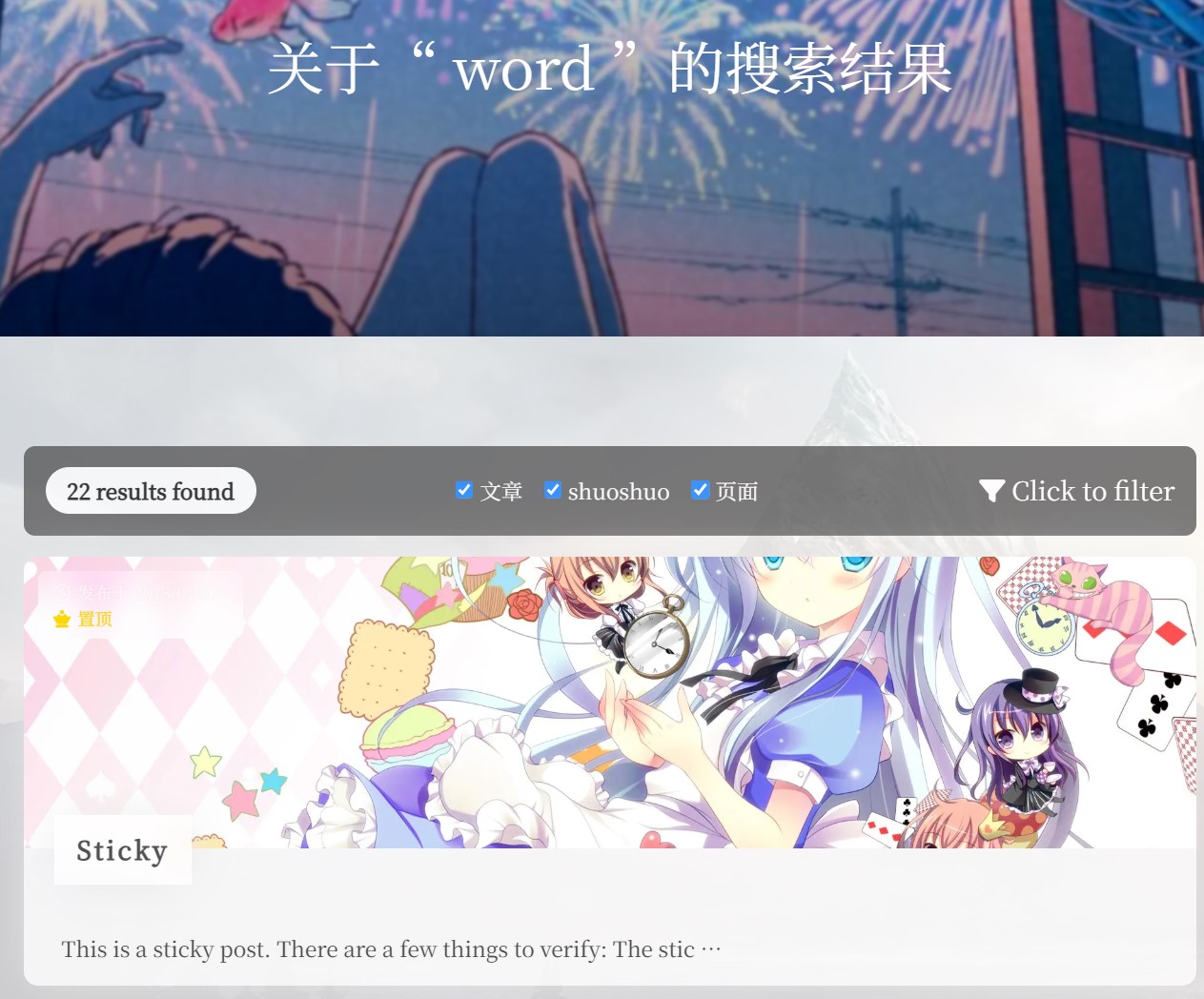
Show Posts in Search
Toggle inclusion of posts in search results (default: on).
Show Pages in Search
Toggle inclusion of pages in search results (default: on).
Admin-Only Page Search
Restrict page search to administrators (default: off).
Sticky Posts First
Keep sticky posts at the top of search results (default: on).
Exclude Specific Content
Enter comma-separated IDs to omit from search results (e.g. “12,34”).
How to find an ID: In the post/page editor URL:
…post.php?post=1105&action=edit→ ID is1105.
Real-Time Search
Enable live search results in the overlay, with hourly cache refresh (default: off).
Caches via the REST API—cache duration configurable in
api.php.
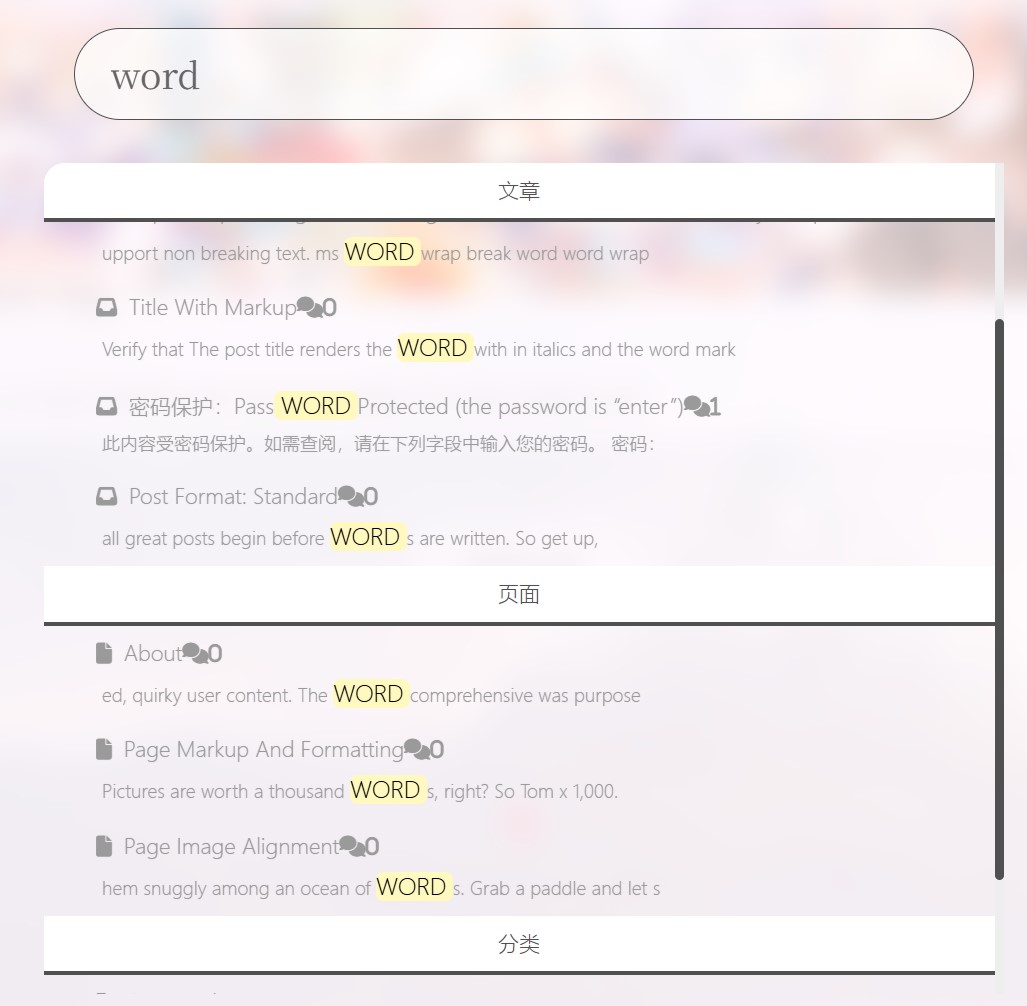
Show Comments in Real-Time Search
Include comments in live search (default: off). Not recommended on sites with very high comment volume.
Extra Options
Effects & Animations
Preload Animation
Enable built-in preload animation (default: off). You can customize its color.
Blur Transition Duration
Set the duration (ms) of the preload blur effect; 0 to disable.
Sakura Falling Effect
Enable sakura petals animation (default: off). Choose from several density presets.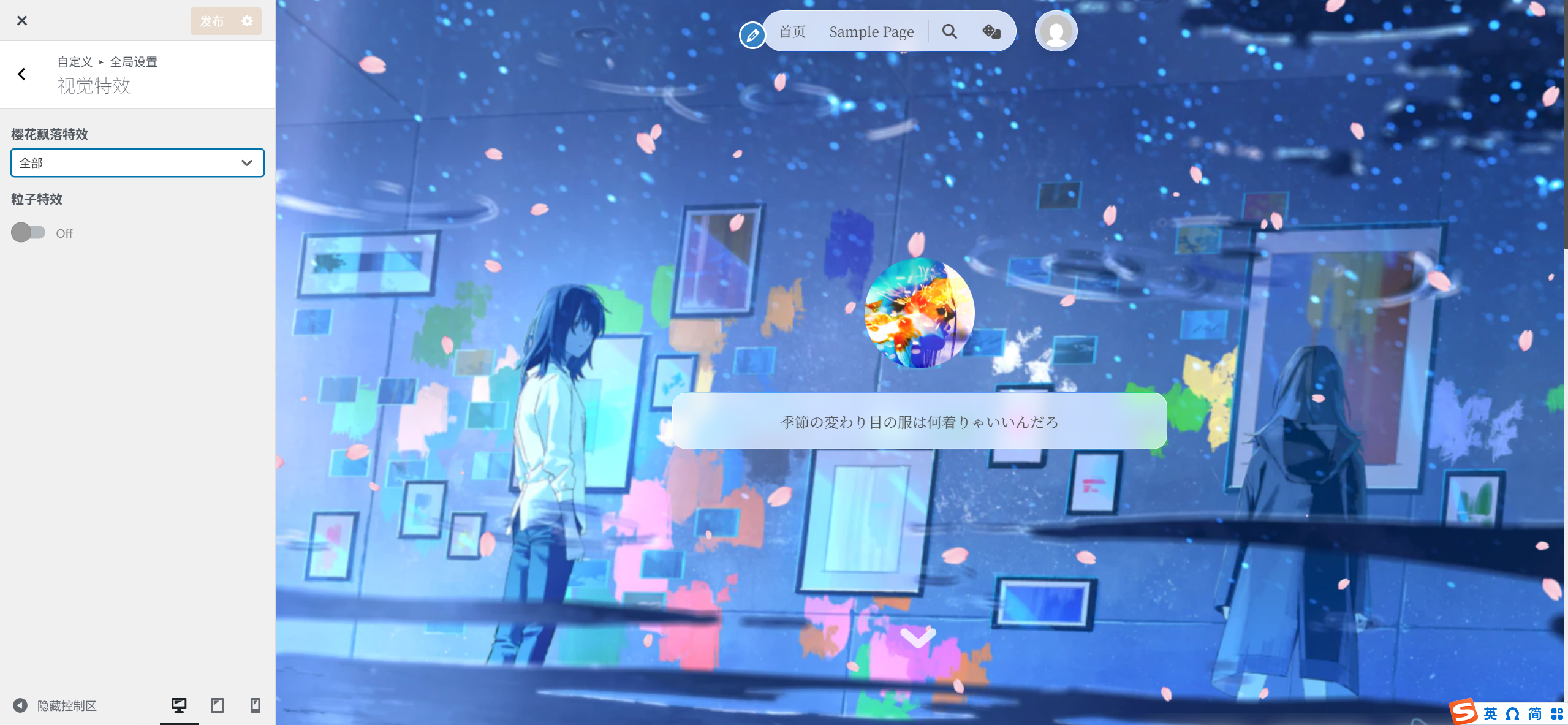
Particle Effects
Enable particle background effects. Best used with unified cover/frontend background.
Advanced users can supply custom JSON config for personalized particles.
Features
PJAX Partial Page Loading
Enable PJAX for faster navigation by only reloading changed content.
After enabling, page links won’t trigger full page reloads.
PJAX Persistent Resources
Scripts or styles that need reloading each PJAX navigation—enter one URL per line; relative or absolute paths are supported.
NProgress Loading Bar
Show a top-of-page loading bar on navigation.
Provides visual feedback during page loads.
Smooth Scrolling
Enable smooth scroll behavior site-wide.
CAPTCHA
Enable CAPTCHA on login and admin pages.
WARNING
May conflict with other CAPTCHA plugins. Do not enable both.
Pagination Mode on Home
Choose between:
- Ajax Load
- Auto-load next page: set delay before loading.
- Prev/Next Links
Next-Page Placeholder SVG
Set the SVG URL displayed while loading the next page.
Avatar Fallback Image
URL of the image to show when avatars fail to load (comments, navbar, links page).
Image Fallback
URL of the image to show when any other images fail to load.